how do I launch jump desktop connect?

I have Jump Desktop Connect, as well as Jump Desktop, installed on several Mac Studios at work. I am trying to launch Jump Desktop Connect on some of them so I can add another remote access user. When I click on the Jump Desktop Connect icon in the Dock or try to launch it using Spotlight or try to launch it from the Application folder in the Dock or try to launch it from the Application folder in Finder, I'm unable to launch it. I do have it set to launch on reboot, so I can adjust it that way; but one of my Macs is busy doing something, so I can't reboot it right now. Please assist.
-
Official comment

Hi,
In the Mac's top menu bar on the top right you should see an icon like this:
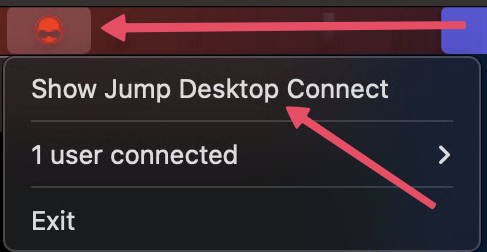
Click the icon and then click 'Show Jump Desktop Connect'.
On Windows you will see a similar icon in the tray.Comment actions -
Gorgeous. I was able to Show Jump Desktop Connect and add the remote user. However, when I went to the 2nd computer and tried to Jump into the 1st one, the 1st one was greyed out and I can't Jump into it. They're both logged in under our team account email address, and I checked the box next to everyone in the team account when I added the remote user, but it's still greyed out. Please help.
-
Hi Kazu,
1. If you're a teams user, you should ideally be adding users via the Teams dashboard: https://app.jumpdesktop.com -> click your team on the left then tasks -> Computers and then click 'Add Remote Access User'.
2. Can you make sure your user account has remote access to the machine?
-
Can you please email support@jumpdesktop.com? We’ll need more information about your team and best to discuss privately.
Please sign in to leave a comment.
Comments
7 comments